Tuesday, 21 July 2009

Outlook 2010 - Rules

Rules in Outlook 2010

Using Rules in Outlook 2010 is a great way to have messages do something specific before you actually read them. Rules also apply to sent messages but for the moment I will deal with received mail. There are many conditions you can apply to your incoming mail, for this example I will redirect some mail to a specific folder.

I get daily updates in my Gmail account from a few sites that I subscribe to. These sites could best be described as technology news sites like TechCrunch, Slashdot TechRepublic Etc. I don’t necessarily want to read them when I first open my inbox but for the moment that is where they appear.

Firstly I create a folder where I want the mail to be sent. After right-clicking on Outlook Data Files (in the left folder pane) and selecting New Folder I give the folder a name.


On the Home Tab, with one of the tech news emails selected click Rules, Create Rule from the Action Group.


In the Create Rule dialogue box the name TechRepublic Daily Digest has been inserted in the list of ‘When I get e-mail with all of the selected conditions’, which I tick. Under ‘Do the following’ I tick ‘Move the item to folder: TechNews.


Clicking Advanced Options will open the Rules Wizard options and give lists of conditions that can be applied.


By selecting ‘Run this rule now on messages already in “Inbox”’, all older/read mail from TechRepublic will be move there.


Monday, 20 July 2009

Office 2010 - Calendar Templates

Calendar Templates 2010


New Calendar Templates are now available for download from Office Online. The link is here. Here are a few examples.

Word


Excel


OneNote


Publisher


Sunday, 19 July 2009

Outlook 2010 - Import Contacts II

Outlook 2010 - Import Contacts (the Movie)


Outlook 2010 - Import Contacts

Office 2010 - Outlook Contacts
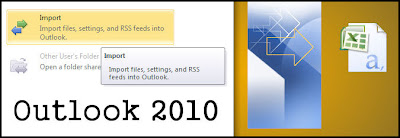

To import contacts to outlook 2010 from a webmail account; sign in to your webmail account, click contacts, depending on the account you will either see at the top of the contacts box/list ‘Export’ or Manage > Import/Export. Download the CSV file to your computer/desktop. CSV Comma-Separated Values (sometimes called Comma-Separated Variables) are Excel files used to export data. Basically, each row entry from a table, for example, is separated by a comma enabling data to be passed (as a whole) from one application to another (usually databases to spreadsheets and vice versa).

With the CSV file save somewhere on your computer, I usually download files that will only be used once to the desktop.


Open Outlook 2010, with the Navigation Pane showing, right-click Contacts and from the context menu click new folder. You can, of course add your contacts to an existing folder but I prefer to keep them separate.


Give the folder a name.


There is no File menu in Office 2010 so everything you would usually find there is now on the new, classier Office Button. Office (Outlook) Button > Open > Import. I assume they get well paid for doing this, they should, but I don’t associate open and import in the same context, logically speaking. It can be a good barometer when applications follow a logical sequence. Or, where someone has said something like “yeah, I know where it can go, let's see if it passes the focus group”.


Import and Export Wizard: Import from another file.


Import a File: Make sure Comma Separated Values (DOS) is selected.


Choose the file from your desktop or documents. Duplicates are not an issue if you are importing to a new folder so leave it on ‘Allow duplicates to be created’.


Saturday, 18 July 2009

Office 2010 - Office Tools

Office Tools 2010


  • Digital Certificate for VBA Projects
  • Microsoft Clip Organiser
  • Microsoft Office Language Preferences
  • Microsoft Office Picture Manager
  • Microsoft Office Send-a-Smile
  • Microsoft Office Synchronisation Center


Digital Certificate for VBA Projects

“Microsoft® maintains a list of trusted third-party commercial certificate authorities to enable secure and usable e-commerce for Microsoft® Windows® users. These certificate authorities validate the identity and entitlement of an applicant, and as an output of this process, issue the applicant a digital certificate.

Digital certificates can be used to prove the identity of a remote person or resource, since not all certificate authorities follow the same operational practices. Microsoft uses an independent third-party audit (WebTrust for Certificate Authorities) along with other technical requirements to ensure our customers are have access to trustworthy CAs.

For information on Microsoft Root Certificate Program requirements, see the Microsoft TechNet Web site.”


Microsoft Office Language Preferences


Microsoft Clip Organiser


Microsoft Office Picture Manager


Microsoft Office Send-a-Smile


Microsoft Office Send-a-Frown


Feedback is always a great thing to have though I’m not sure where the Send-a-Smile & Send-a-Frown are leading. I mean imagine being assigned to the Send-a-Frown desk! I suppose our first ‘Frown’ to Microsoft will be; if MS-Paint and Word Pad (in Windows 7) can have Ribbons then why not the Clip Organiser and Picture Manager in Office 2010? As for sending a ‘Smile’ I think I’ll reserve judgment until I see the pricing of Office 2010.

Microsoft Office Synchronisation Center


Thanks to Gleanie for letting me use her photo.